

Assign purposes
Scope the form to the fields and flows it is allowed to use.
The Purposes scope — under Form in the sidebar, beside Form Settings — is where you scope the form to the administrator-approved Purposes that govern:
- which Salesforce fields it may read (Data Mapping)
- which it may write (Submission Actions)
- which flows it may invoke
Assigning them
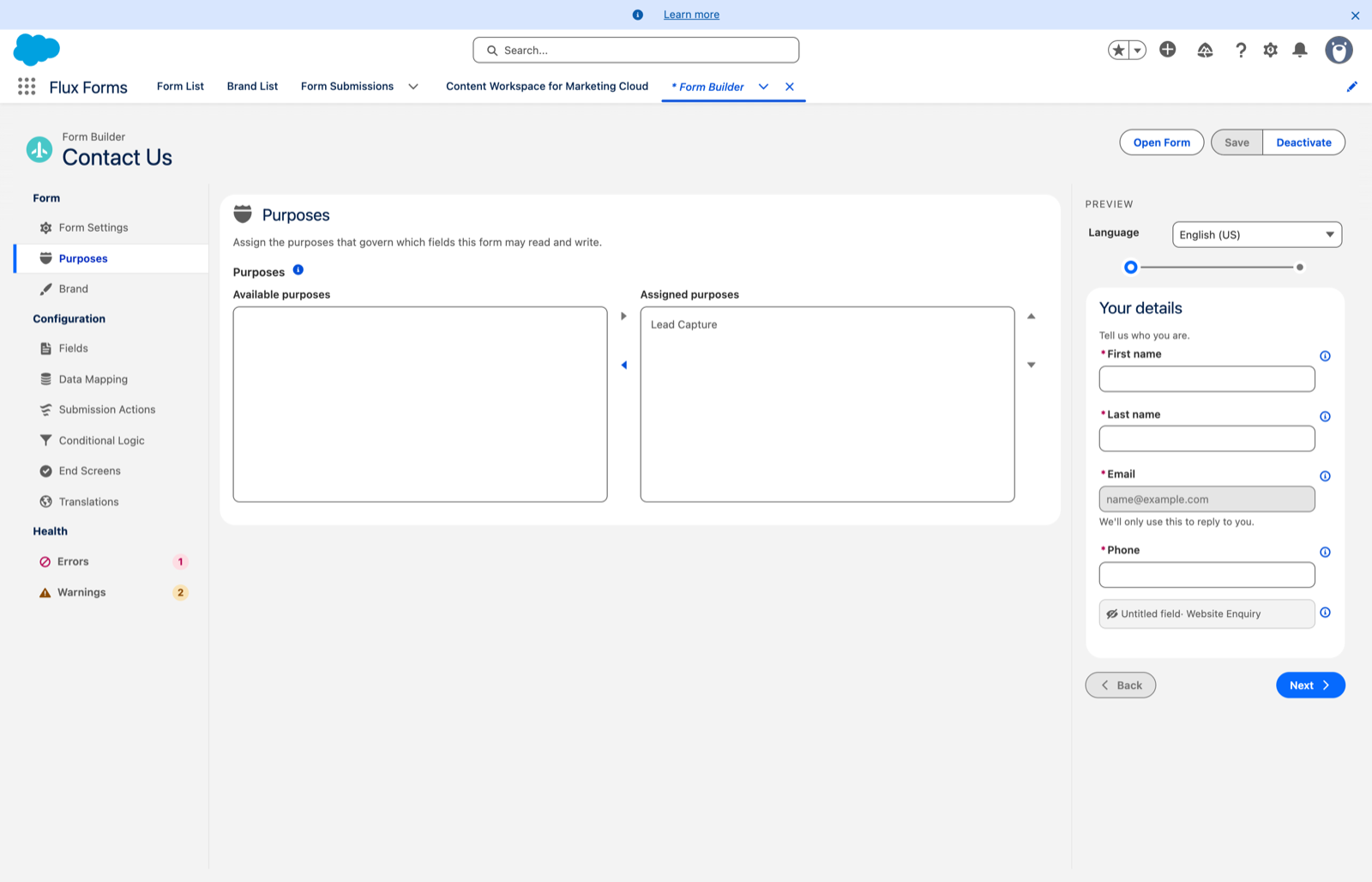
It is a two-column picker: Available purposes on the left, Assigned purposes on the right. Move the ones the form needs into Assigned, then Save in the header — the assignment is stored along with the rest of your edits.
Why this is the step people miss
Assigning purposes here is what makes fields selectable in the Data Mapping and Submission Actions editors, and what lets Save accept those field references.
So the order of work matters:
- An administrator defines the purpose in Purpose Manager.
- You assign it to the form here.
- Then the fields appear in Data Mapping and Submission Actions.
Doing it the other way round means staring at empty pickers, or typing API names that Save will reject.
If the list is empty
Only purposes an administrator has already defined appear here. An empty Available purposes column means none exist yet — ask an administrator to create one. You cannot widen your own field access, by design. See Purposes.
What happens if you skip it
A form with no purposes assigned still works as a form: it collects answers. What it cannot do is prefill from Salesforce or write to Salesforce on submit.
Save refuses any form that references a Salesforce field its purposes do not grant — read access for a data mapping, edit access for a submission action — with a message naming the field.