

File uploads
Accepting files, the limits that cannot be raised, and what happens when an upload fails.
A file upload field lets a visitor attach files to their submission.
Settings
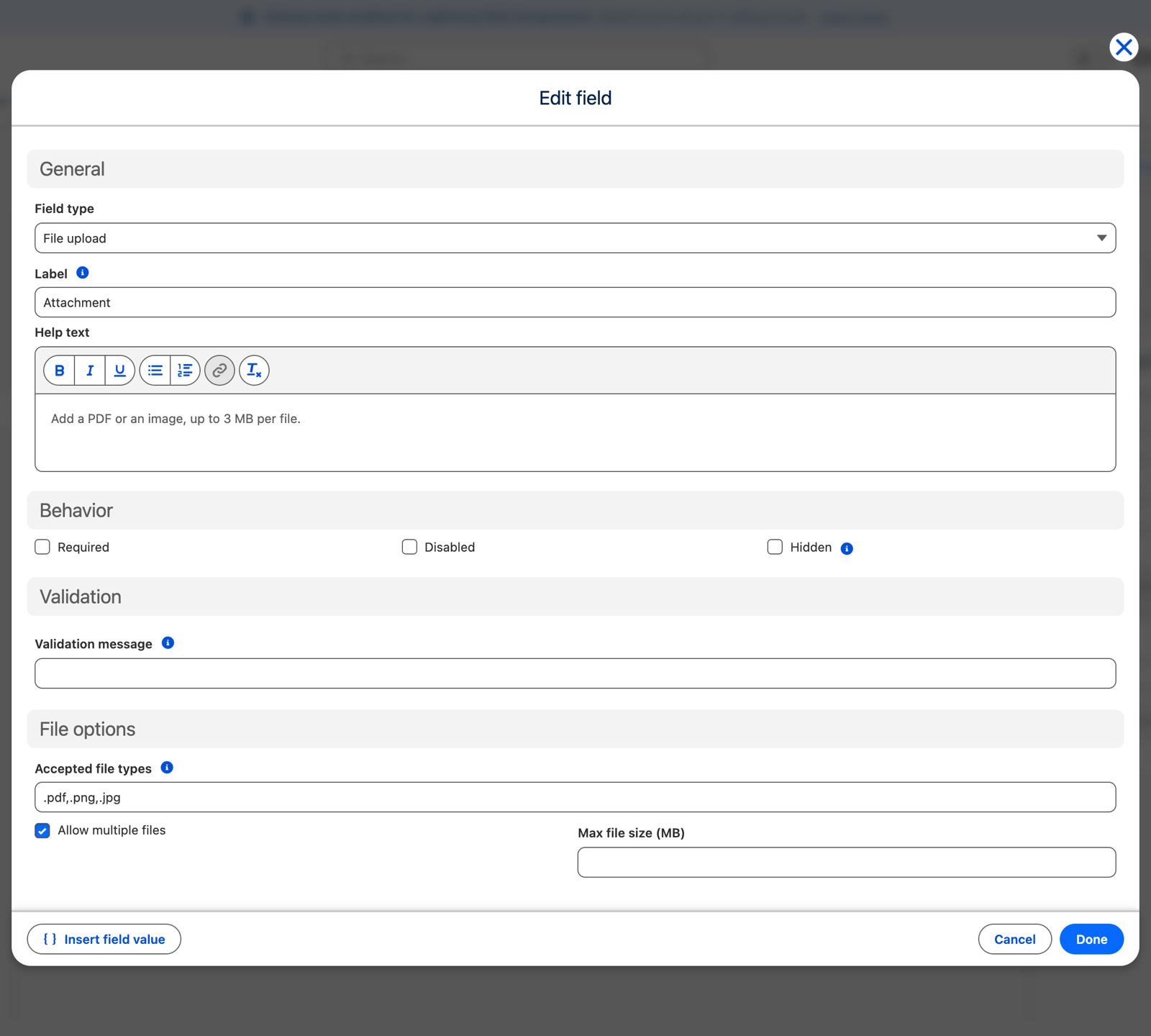
Under File options in the field editor:
- Accepted file types — a comma-separated list of extensions or types, for example
.pdf,.png,image/*. Leave it blank to allow any file. - Allow multiple files.
- Max file size (MB).
The visitor gets the standard browser file picker. The accepted types and size limit are checked before the form can be submitted, and again on the server, so they cannot be worked around by editing the page.
Where the files go
Uploaded files are attached to the submission record, so you can open them from the submission just like any other Salesforce file.
The limits
These are worth knowing before you promise a client something the platform will not do.
- Maximum 3 MB per file. If you enter a larger Max file size, it is capped at 3 MB. This is a Salesforce processing limit, not a setting anyone can raise.
- Some file types are always refused, whatever you put in Accepted file types: web-page and
script files such as
.html,.svgand.js. These can run code in a browser when opened from Salesforce, so they are blocked for safety. - There is an overall cap on how many files, and how many megabytes, one submission can carry.
A client who needs to accept 10 MB scans cannot do it with a file upload field. Ask them to link to a file-sharing location instead, or collect the document another way.
When an upload fails
Files are uploaded when the visitor presses Submit, not while they are filling the form in. If an upload fails, the visitor sees a Try again button and their answers are still there — nothing is lost.
What a file field cannot do
- It cannot have a default value.
- It cannot be prefilled from Salesforce.