

Data mapping and prefill
Fill a form in from an existing Salesforce record before the visitor arrives.
The Data Mapping scope sets up how a form's fields are prefilled from an existing Salesforce record — so a visitor arriving from a personalised link sees their details already filled in.
Adding a binding
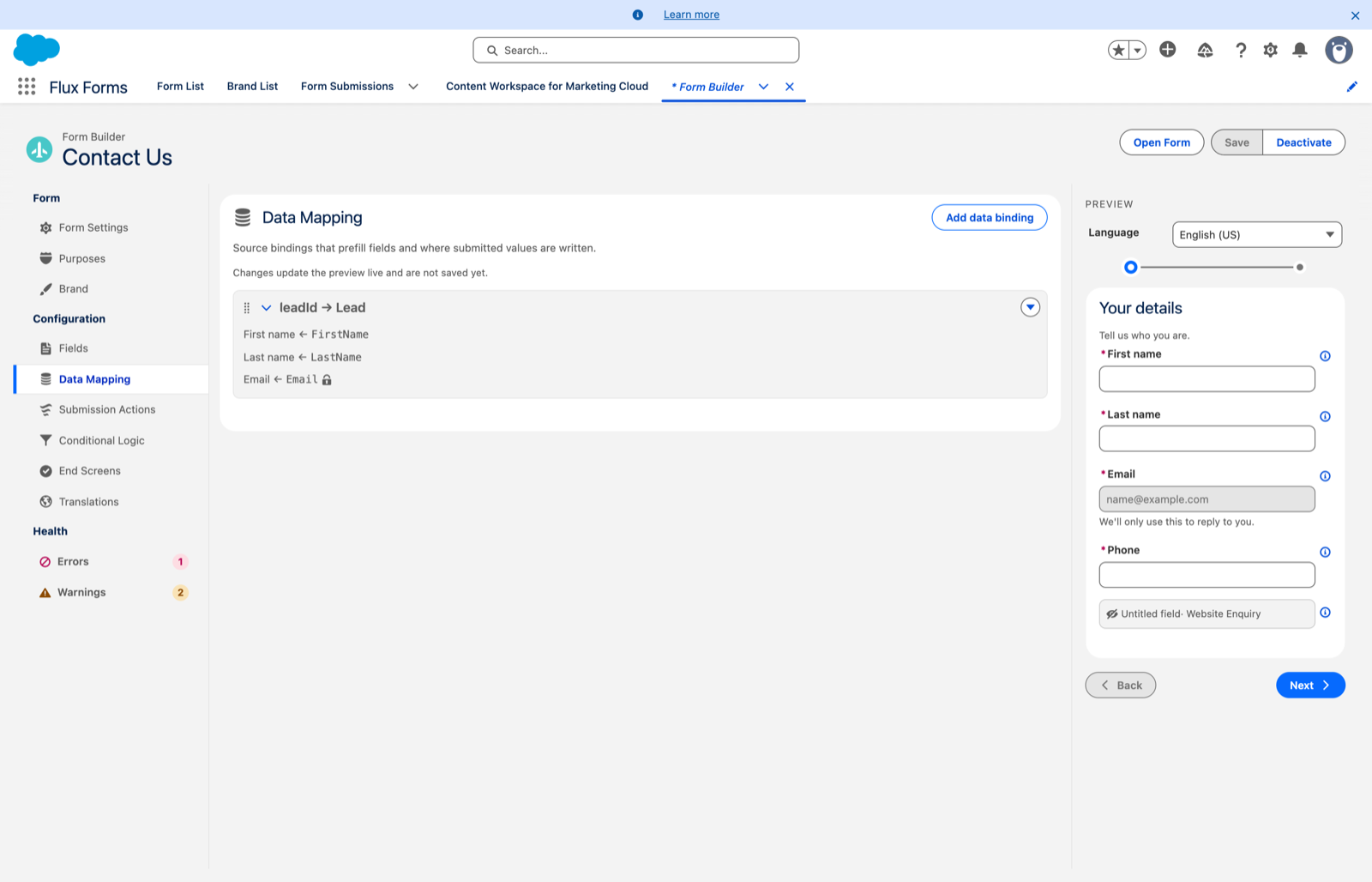
Open the form in the Form Builder and pick Data Mapping. Existing bindings are listed as cards
summarising their source, for example leadId → Lead. Click a card — or use its actions menu
(▾) — to edit, reorder or delete it.
Add data binding opens the dialog:
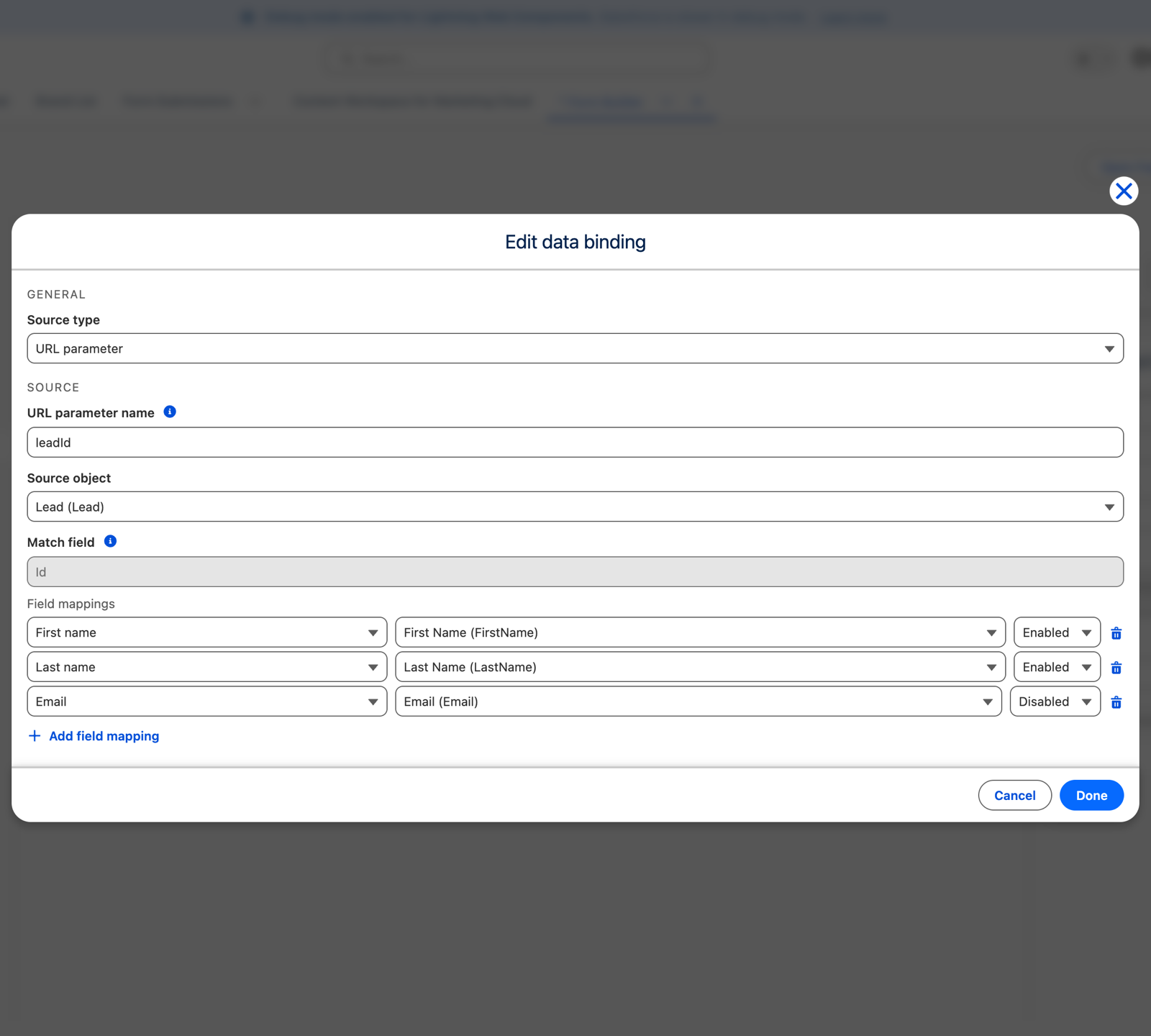
- Source type — URL parameter. The visitor's link carries the record reference as an encrypted token. See Build a personalised link.
- URL parameter name — the name the binding reads its record id from, for example
leadId. This name goes inside the encrypted token, not visibly in the URL. - Source object — the Salesforce object to read from. The list only shows objects your form is allowed to read. If nothing is listed, a hint points you at the purposes.
- Match field — fixed to Id for now; the parameter value is treated as a record id.
- Field mappings — one row per field. Pick the Form field to fill and the Source field to
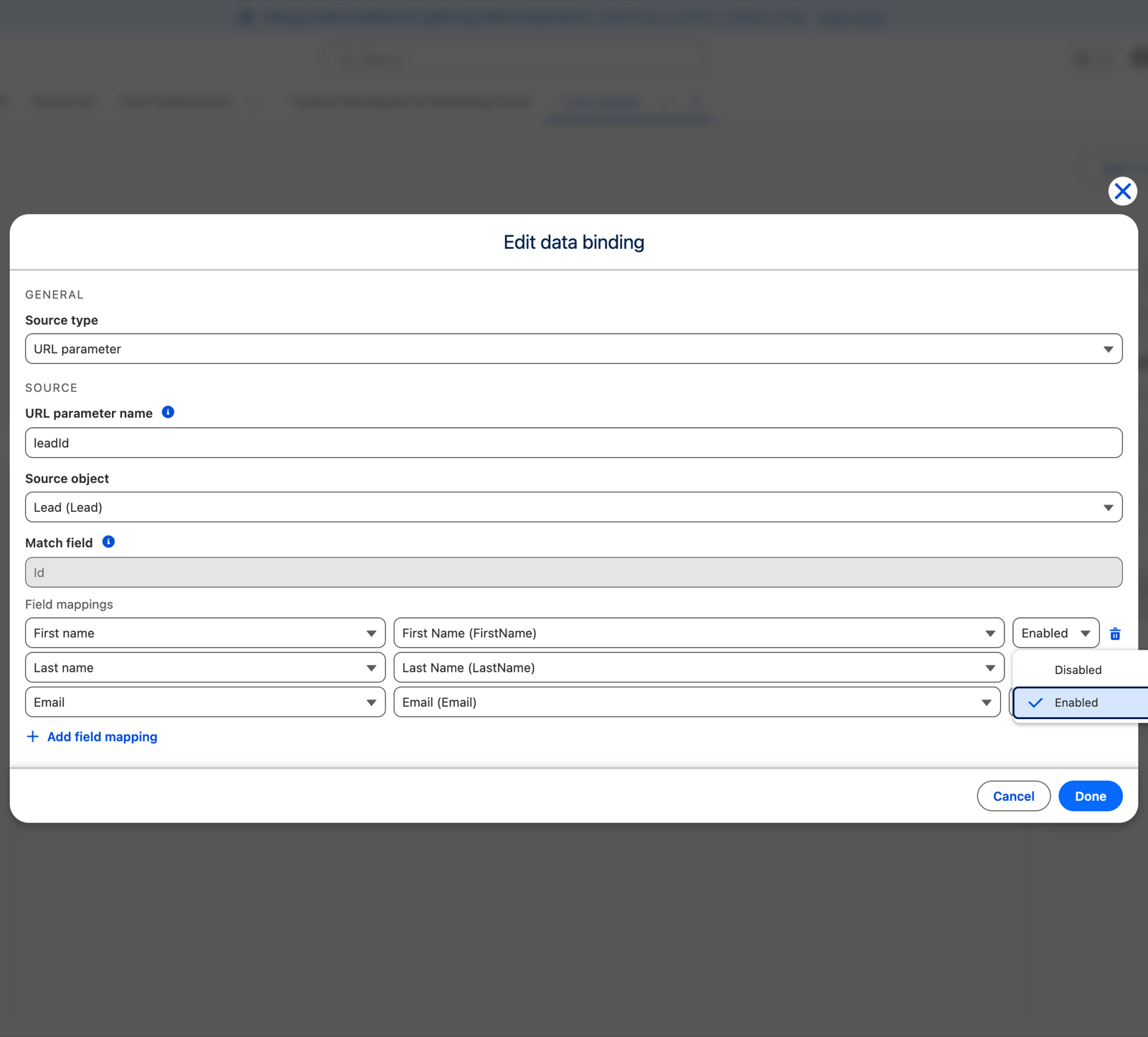
read it from, then use the behavior picklist to leave the prefilled field:
- Enabled — the visitor can change the value
- Disabled — the value is shown locked and read-only
Then Save. See Saving.
Checking it
The preview flags each mapped field with a Prefilled badge — and Locked when you locked it — and shows the record field it reads from.
Multi-select fields prefill as ticked boxes
A multi-select picklist on the source record prefills a checkbox group as ticked boxes, one per stored option. The visitor can then tick more, or untick some, and what they leave behind is what gets submitted — ticking an extra box adds to the prefilled selection rather than replacing it.
That is the same shape a submission action writes back, so a value one form stores prefills into exactly the same ticks the next time round. Whether a submission then replaces that stored set or adds to it is the Write mode choice on the field-mapping row. See Submission actions.
If the object list is empty
Read access comes from the form's assigned Purposes. Grant it in the Purpose Manager, assign the purpose to the form, and the objects appear. See Assign purposes.
Save refuses a form whose data mapping reads a field its purposes do not grant read access to, with a message naming the field.
What a prefill link can and cannot reach
- What the link may read is decided by the form's Purpose, not by who opens it. Only fields an administrator has explicitly marked readable are ever filled in.
- The token is tied to one form, so it cannot be pointed at another form or edited to name a different record.
- Prefill works on public forms as well as logged-in pages, so you can email a personalised link to someone with no Salesforce login.
- File upload fields cannot be prefilled.
- Matching on fields other than Id is planned for a later release.