

Conditional logic
Show, hide, require and disable fields based on the answers given.
The Conditional Logic scope makes the form react to what someone enters. It works from the fields you built in the Fields scope.
The rule list
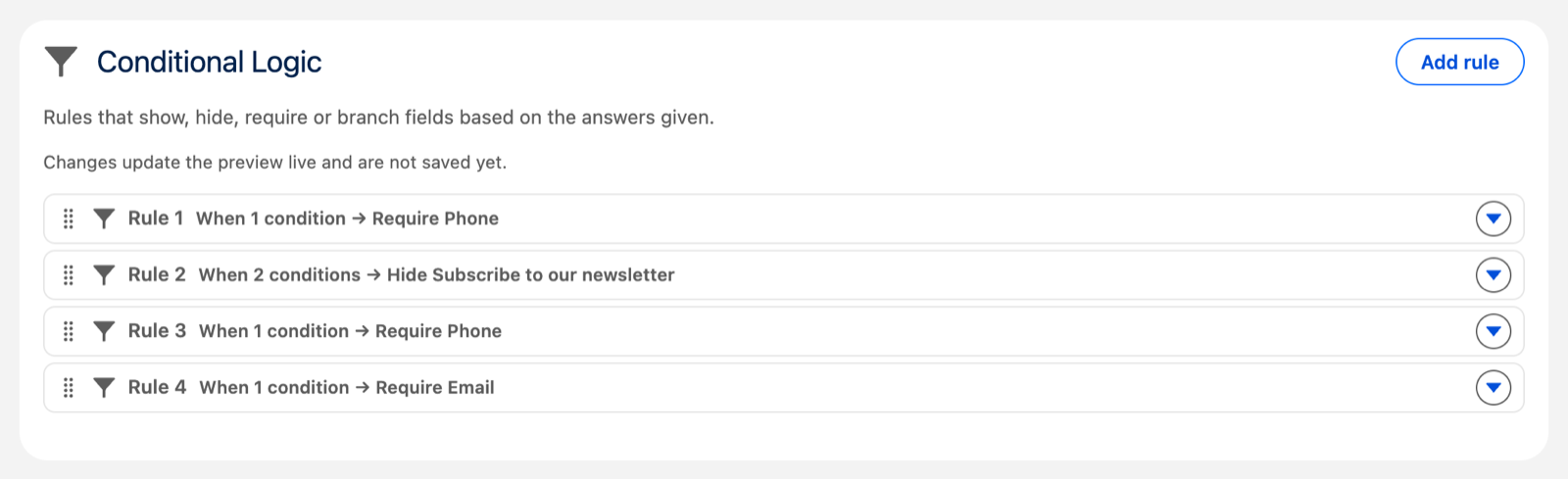
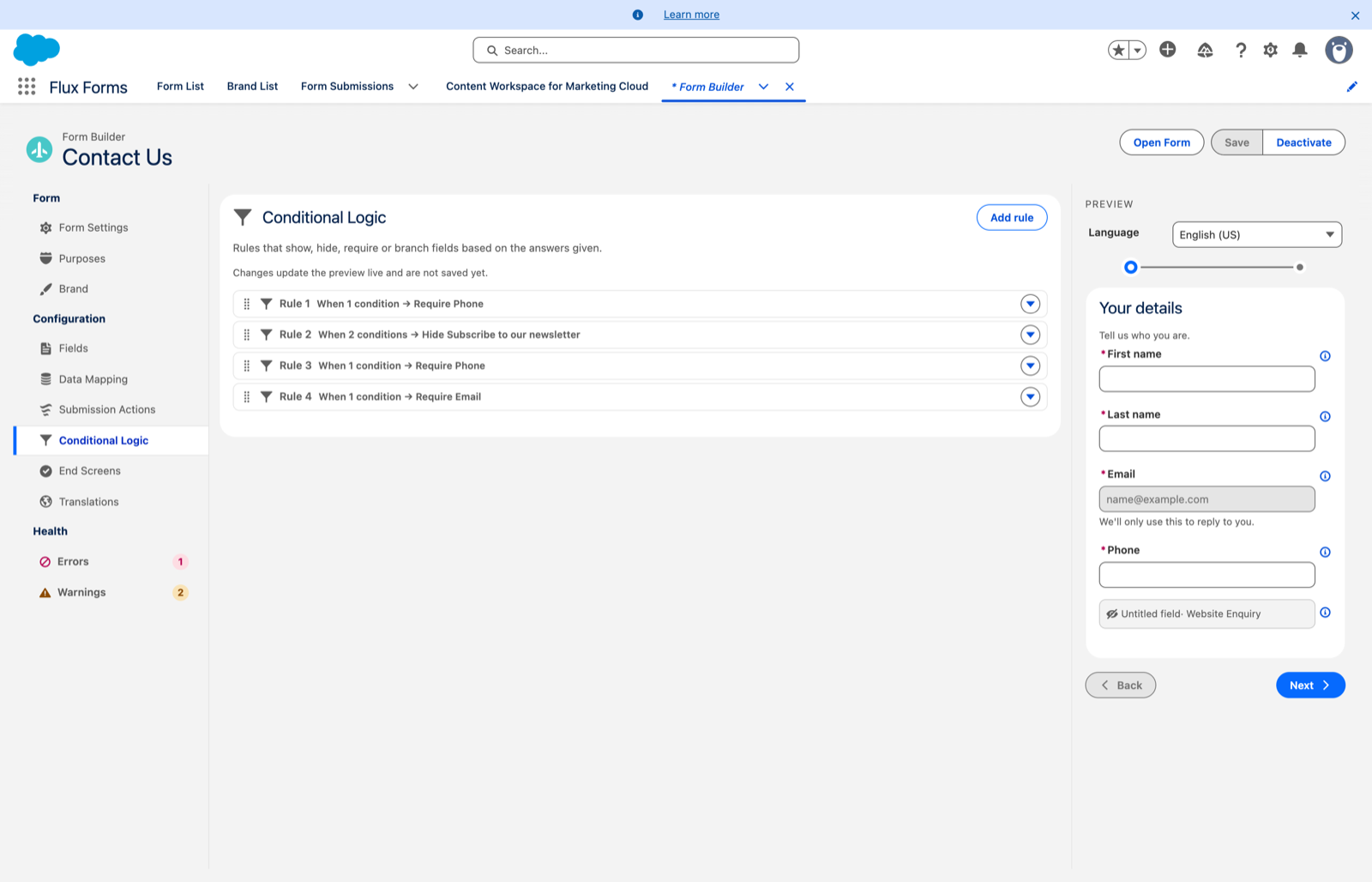
Existing rules are listed as summary rows showing how many conditions they have and what they do. Click a rule row to edit it, or use its actions menu (▾) for Edit, Move up / Move down, or Delete. Drag a rule by its grip — or use the grip's arrow keys — to reorder.
Order matters
Rules are checked top to bottom:
- When two rules set conflicting effects on the same field — one Show, one Hide — the lower rule wins.
- For flow actions, the first matching rule of each kind is used.
Put the more specific rules lower when you want them to have the final say.
Building a rule
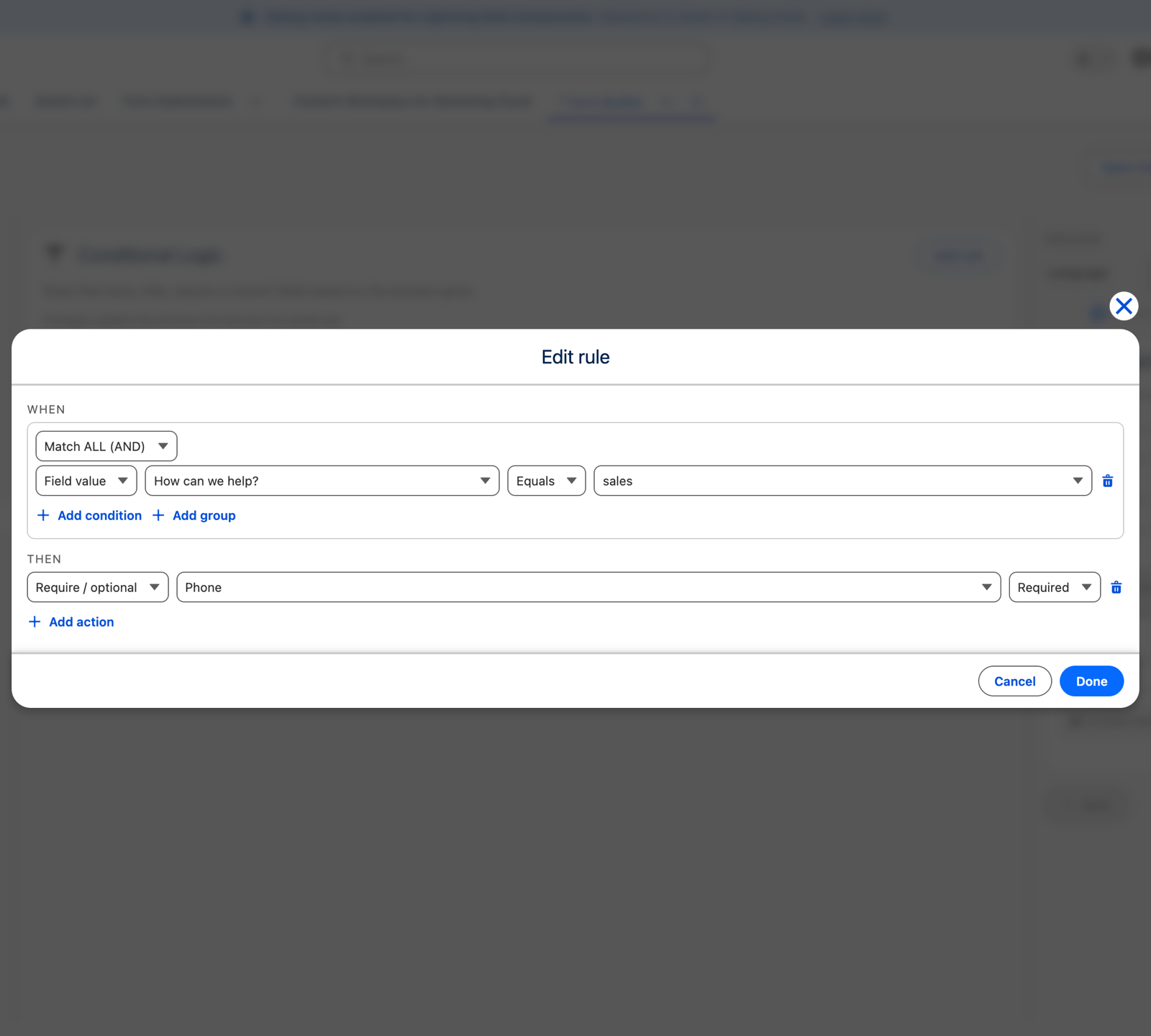
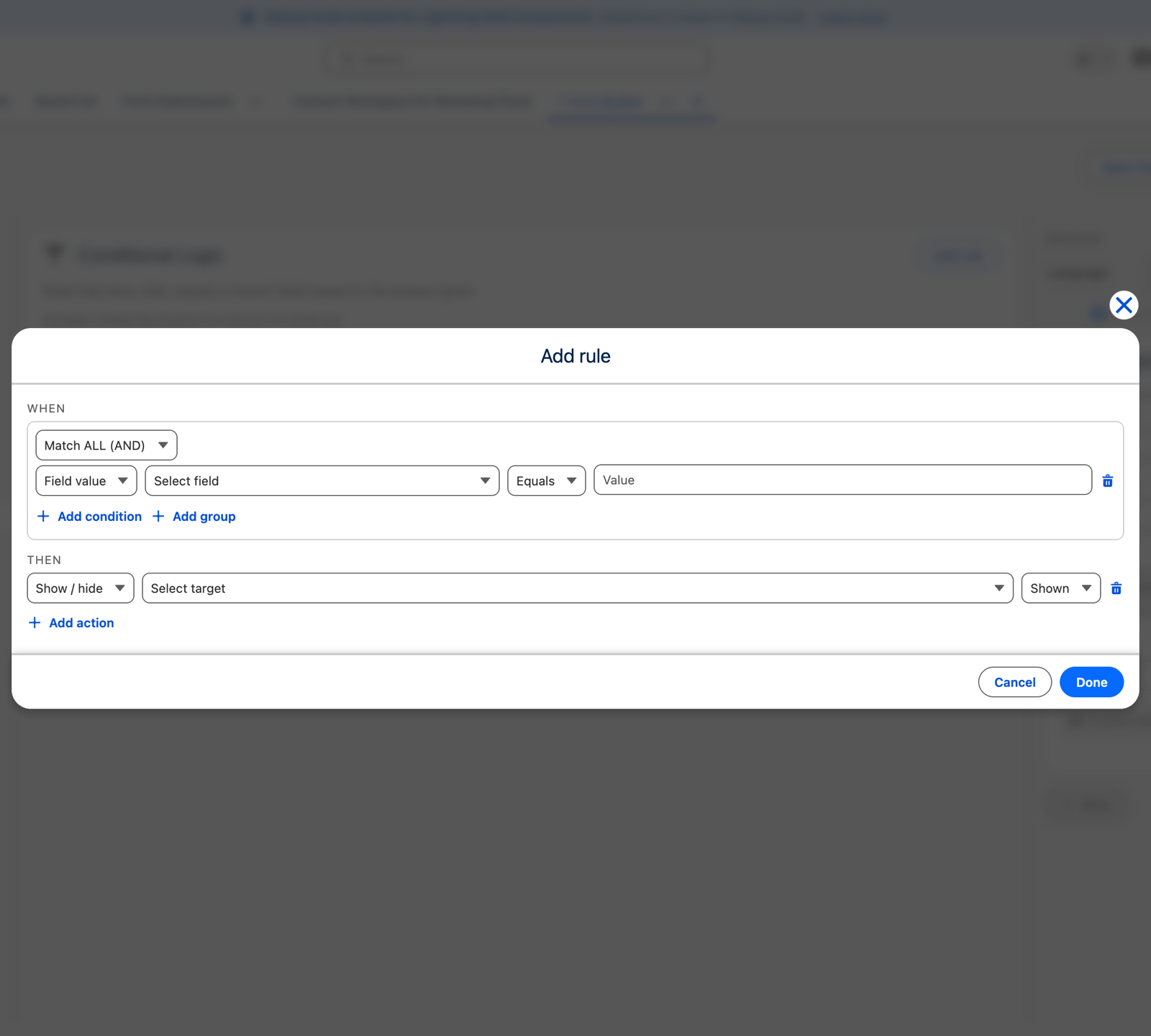
Click Add rule. A rule has two halves: When (the conditions) and Then (what to do).
When
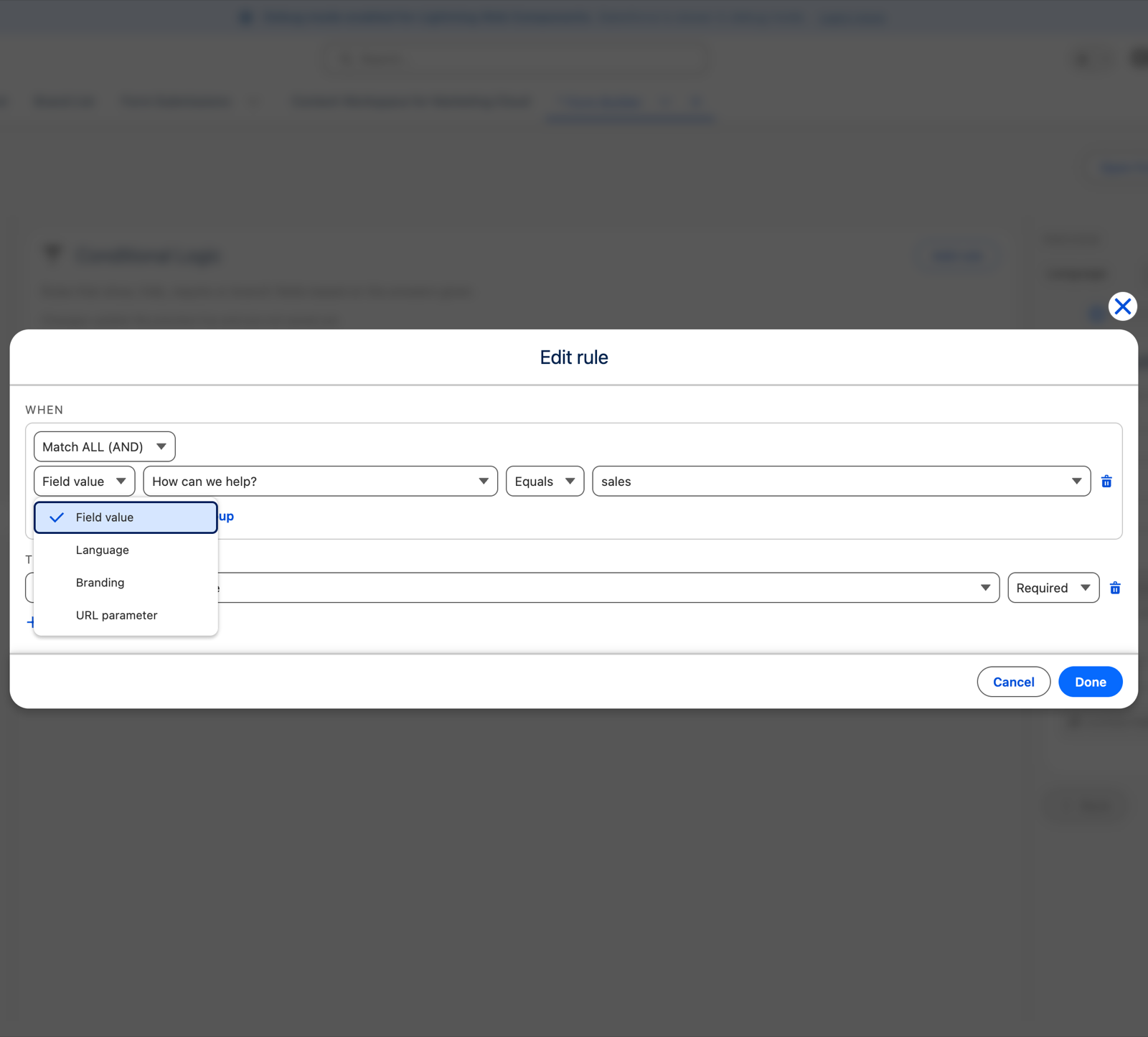
- Pick a Match: Match ALL (AND) means every condition must be true; Match ANY (OR) means at least one.
- Add condition for each check. First pick the Source:
| Source | What it looks at | Example |
|---|---|---|
| Field value (default) | An answer on the form. | Country Equals Belgium |
| Language | The language the form is shown in, from ?lang= or the in-form switch. |
Language Equals Nederlands → Require the VAT-number field |
| Branding | The branding the visitor arrived with — the ?b= value, a Form Branding name such as BR-0003. |
Branding Equals BR-0003 → Show the partner section |
| URL parameter | Any other value on the link. Type the parameter name and the value. | campaign Equals spring → Show the promo field |
Then choose the operator — Equals / Does not equal, and for text also Contains, Is blank and so on — and the value. For picklist, radio and checkbox fields you pick from the field's own choices.
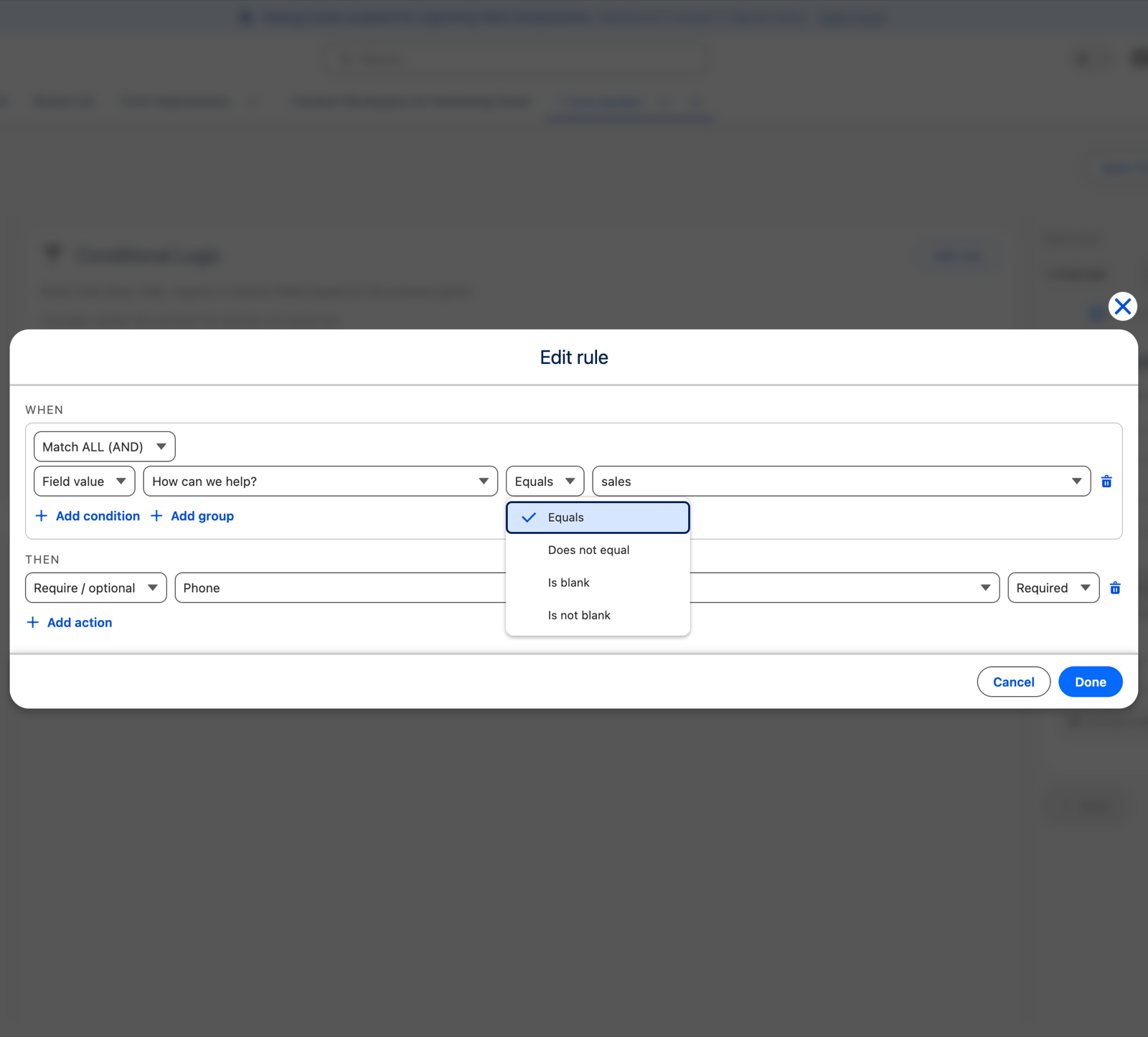
(Language, Branding and URL-parameter sources compare text, so they do not offer the number or date operators.)
- Add group nests another Match ALL/ANY block inside the current one, so you can express "A and (B or C)". Groups nest as deeply as you need.
Then
Click Add action for each outcome:
- Show / hide — sets a field or a whole section to Shown or Hidden while the conditions hold.
- Require / optional — sets a field to Required or Optional while the conditions hold.
- Enable / disable — makes a field Enabled or Disabled (greyed out, not editable) while the conditions hold.
These override the field's own base state. A Hidden outcome hides a normally-visible field; a Shown outcome reveals a field you set to start hidden.
To make a field appear only under a condition, you need both halves: check the field's Hidden toggle in the Fields scope so it starts hidden, and add a Shown rule targeting it. A rule alone does nothing to a field that is visible by default — it stays visible whether the rule fires or not.
The remaining three actions steer where the visitor goes rather than changing a field. See Flow actions.
Click Done to keep the rule, or Cancel to discard. Inside the dialog, the bin icons remove a condition, group or action; a rule's summary row has its own bin to delete the whole rule.
Checking your rules
Answer the form in the preview pane — fields show, hide and become required live as your rules fire. Switch the preview language to check Language-based rules. Fields that drive or are affected by a rule carry a behaviours icon; hover it to see the Condition / Conditional flag.
A security note
Language, Branding and URL-parameter sources read values from the visitor's link, and the visitor can change them.
Use them to present the form — show or hide, require, enable, pick a thank-you screen. Do not rely on them as a security control: a required field driven by a query parameter is a presentation rule, not a server-enforced one.
These three sources are available in Conditional Logic and End Screens. Submit Actions conditions test field answers only.