

Field types and validation
Every field type, the behaviour toggles, and how validation is configured.
The types
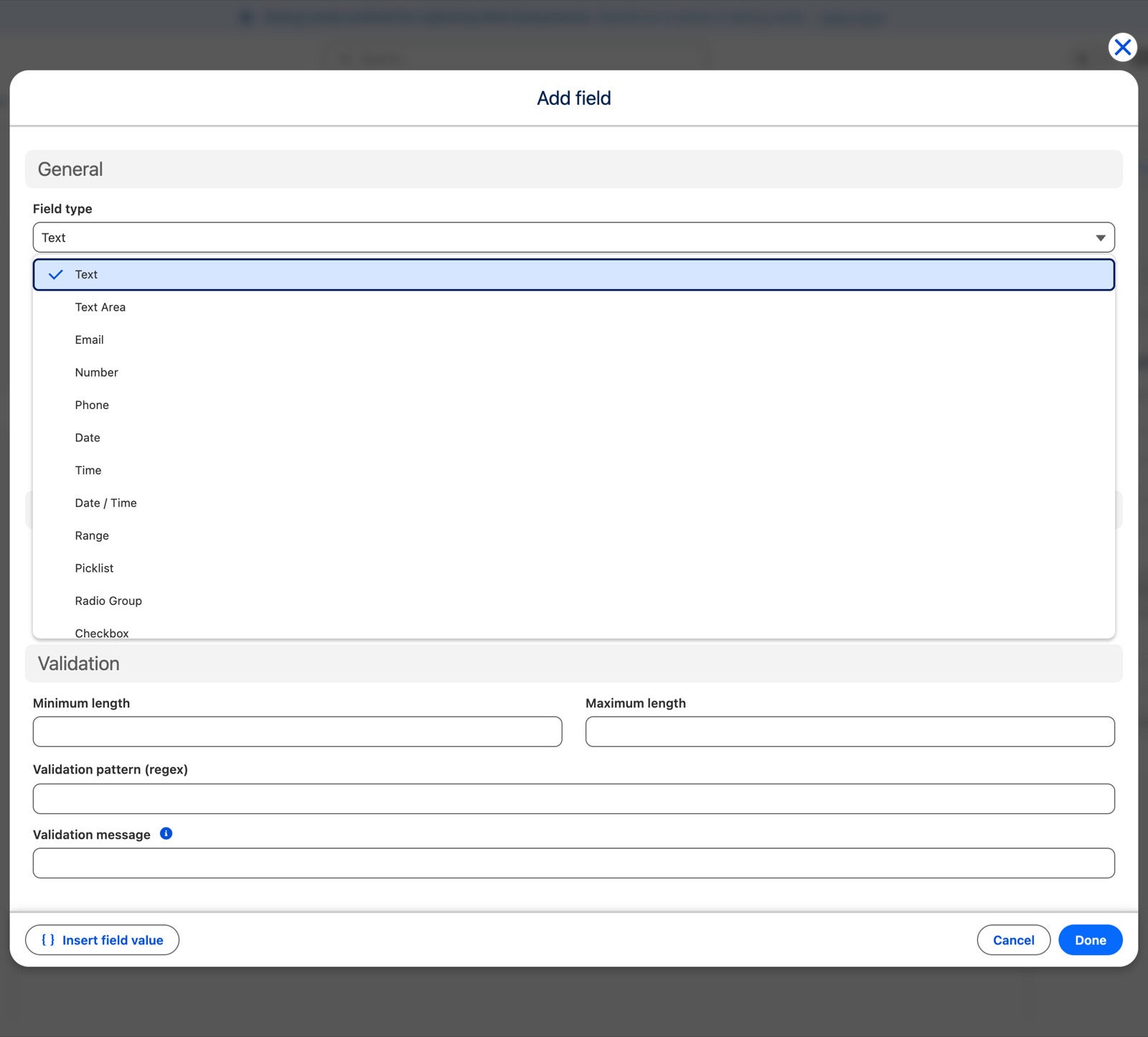
Choose the field type in the field editor:
text, email, number, phone, date, time, date/time, range, picklist, radio group, checkbox, text area, file upload, and hidden.
Hidden (the type) is a value-carrying field the visitor never sees — for example a fixed campaign code sent with the submission. Do not confuse it with the Hidden toggle below, which is a different thing.
Behaviour toggles
- Required — must be filled in before the form can be submitted.
- Disabled — shown but not editable.
- Hidden — off by default. Check it to make the field start hidden, so it only appears when a conditional-logic rule shows it.
Building a "show this field only when…" field
This takes two steps, and missing the second is the most common mistake in the product:
- In the Fields scope, check the field's Hidden toggle so it starts hidden.
- In Conditional Logic, add a rule whose outcome is Shown, targeting that field.
If you check Hidden but never add a Show rule that targets it, the field can never appear. The preview flags this with a "Hidden — no rule can show it" warning so you notice.
Conversely, a field that is visible by default stays visible whether or not a rule fires — adding a Shown rule to an already-visible field achieves nothing.
The Hidden toggle is not shown for the hidden field type.
Validation
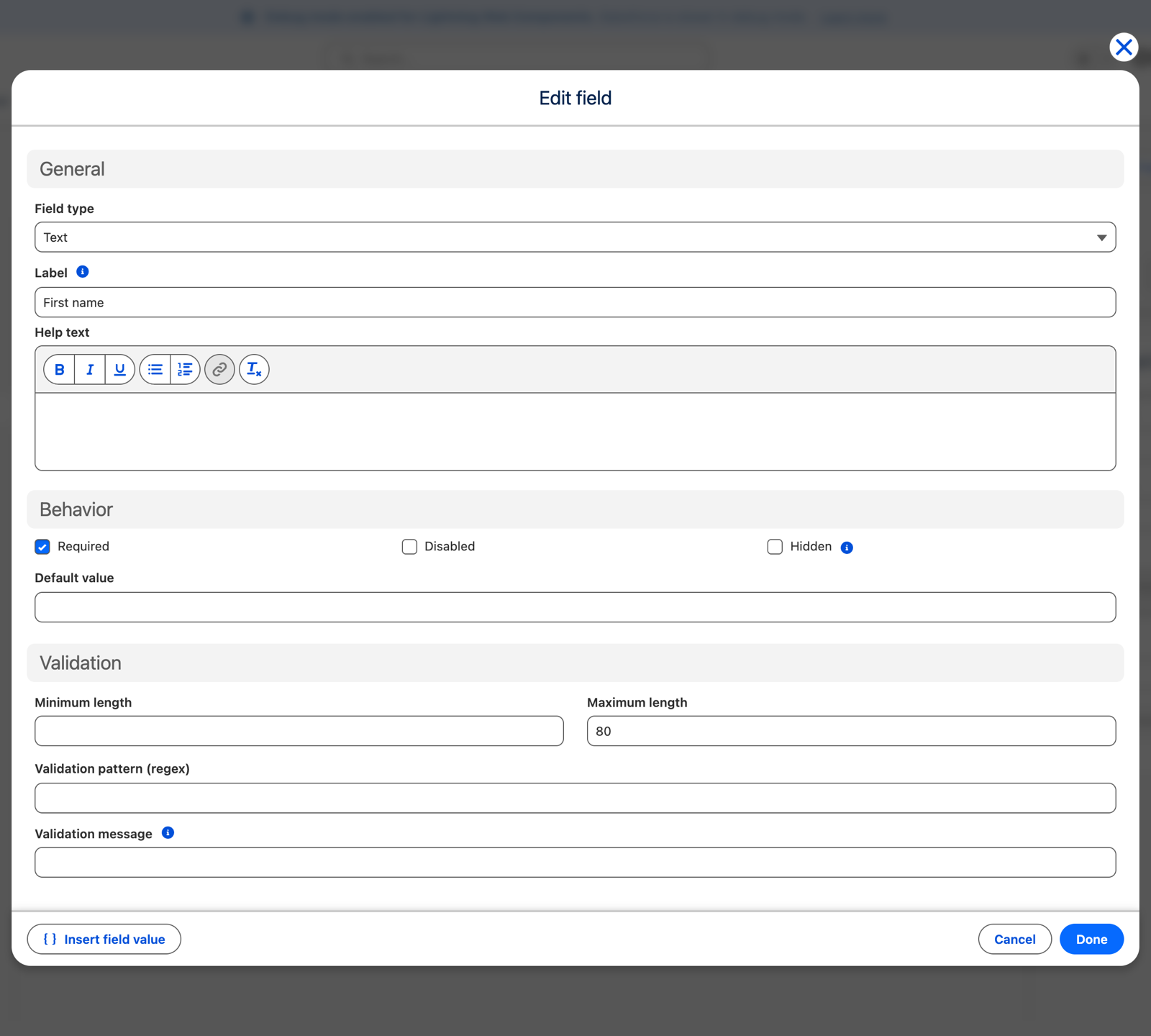
- Default value — prefills the field with a fixed value.
- Min / Max — character length for text, numeric bounds for numbers and ranges, or earliest and latest for dates and times. The labels change to match the type.
- Validation pattern — a regular expression, for text-like fields.
- Validation message — what the visitor sees when the field is invalid: empty when required, or not matching the pattern or limits. It is translatable, like the label and help text.
- Options — the list of choices, for picklist, radio and checkbox fields.
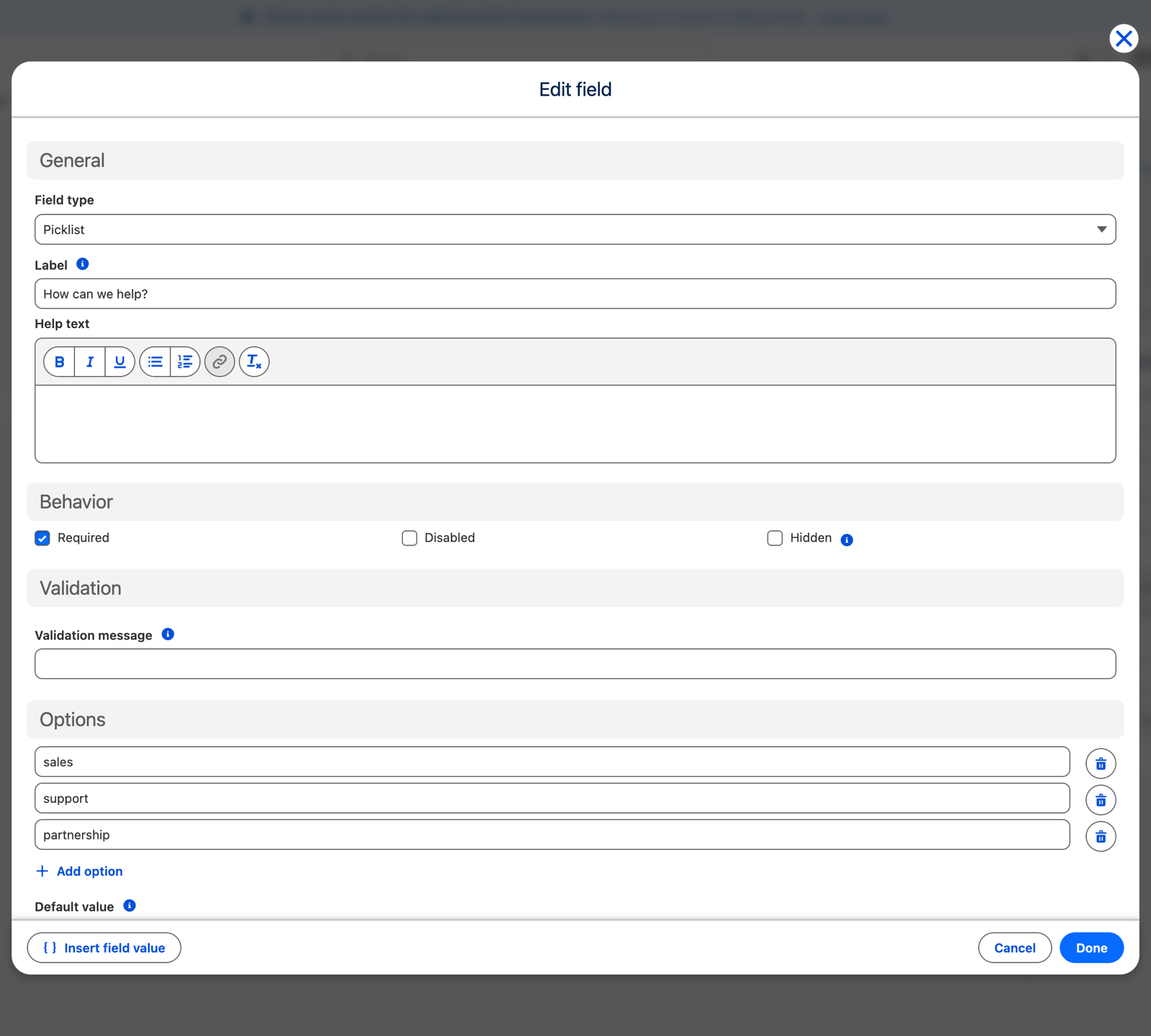
Leaving the Validation message blank gives the visitor a generic message. On any field with a pattern or unusual limits, write one — "Enter a Dutch postcode, for example 1011 AB" is worth far more than "Invalid value".
File upload fields
File upload has its own settings and its own limits, covered separately in File uploads. Two quick notes: a file field cannot have a default value, and cannot be prefilled.