

Form layout
Single page or separate screens, and what changes when you switch.
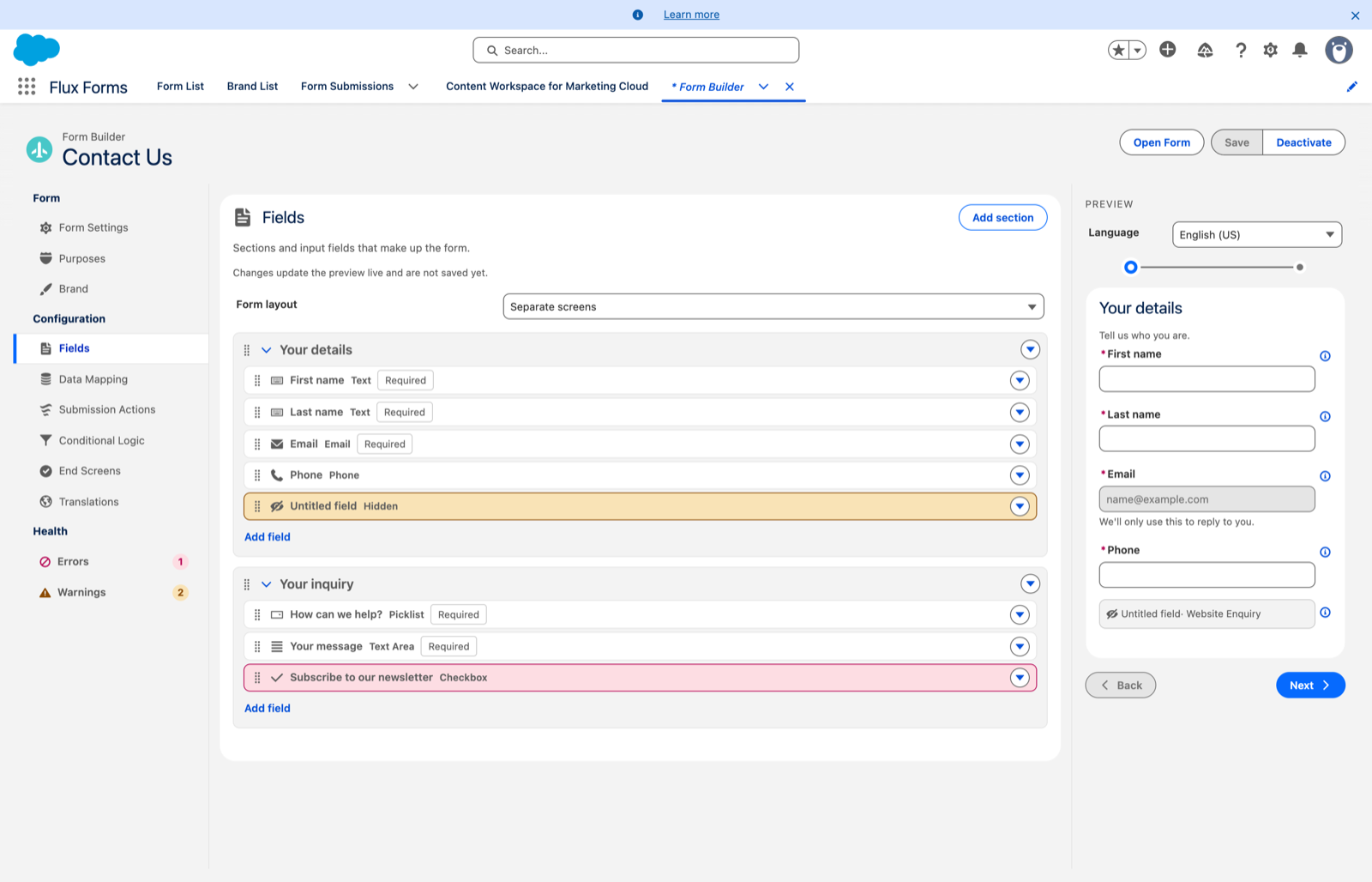
The Form layout picklist at the top of the Fields scope controls how the whole form is presented.
Single page

The default. All sections are stacked on one page.
On a single-page form with more than one section, each section is shown as its own card with clear spacing between them, so visitors can see at a glance which fields belong together.
Separate screens
Each section becomes its own screen, and the form turns into a multi-step wizard:
- one section at a time
- a progress indicator
- Back and Next buttons, and Submit on the last screen
The Back / Next / Submit wording follows the form's translations.
Next only advances once the current screen's required fields are filled in. Any screen hidden by a rule is skipped.
Because there is one section per screen, no section cards are drawn.
What layout affects elsewhere
Switching layout is not purely cosmetic — it changes what parts of conditional logic can do:
- Go to section and the other flow actions only apply to stepped forms. The exception is Submit the form and Block, which also apply to single-page forms at the moment of submit. See Flow actions.
- On a stepped form, required fields in skipped sections are not checked, so a branch never blocks submission.
Checking it
Use the preview pane. With Separate screens selected, walk through with Back and Next to see the real behaviour, including which screens get skipped by your rules.
The Brand Builder preview has its own Form layout dropdown, so you can check a theme against the wizard chrome — the step indicator and Back / Next buttons — without changing any form. That choice only affects the preview and is never saved.