

End screens
Show a different thank-you — or a redirect — based on the answers given.
The End Screens scope decides which thank-you a visitor sees after they submit, based on their answers. For example: one message for people who chose "Sales", another for everyone else. It uses the same When condition builder as Conditional Logic.
How the list works
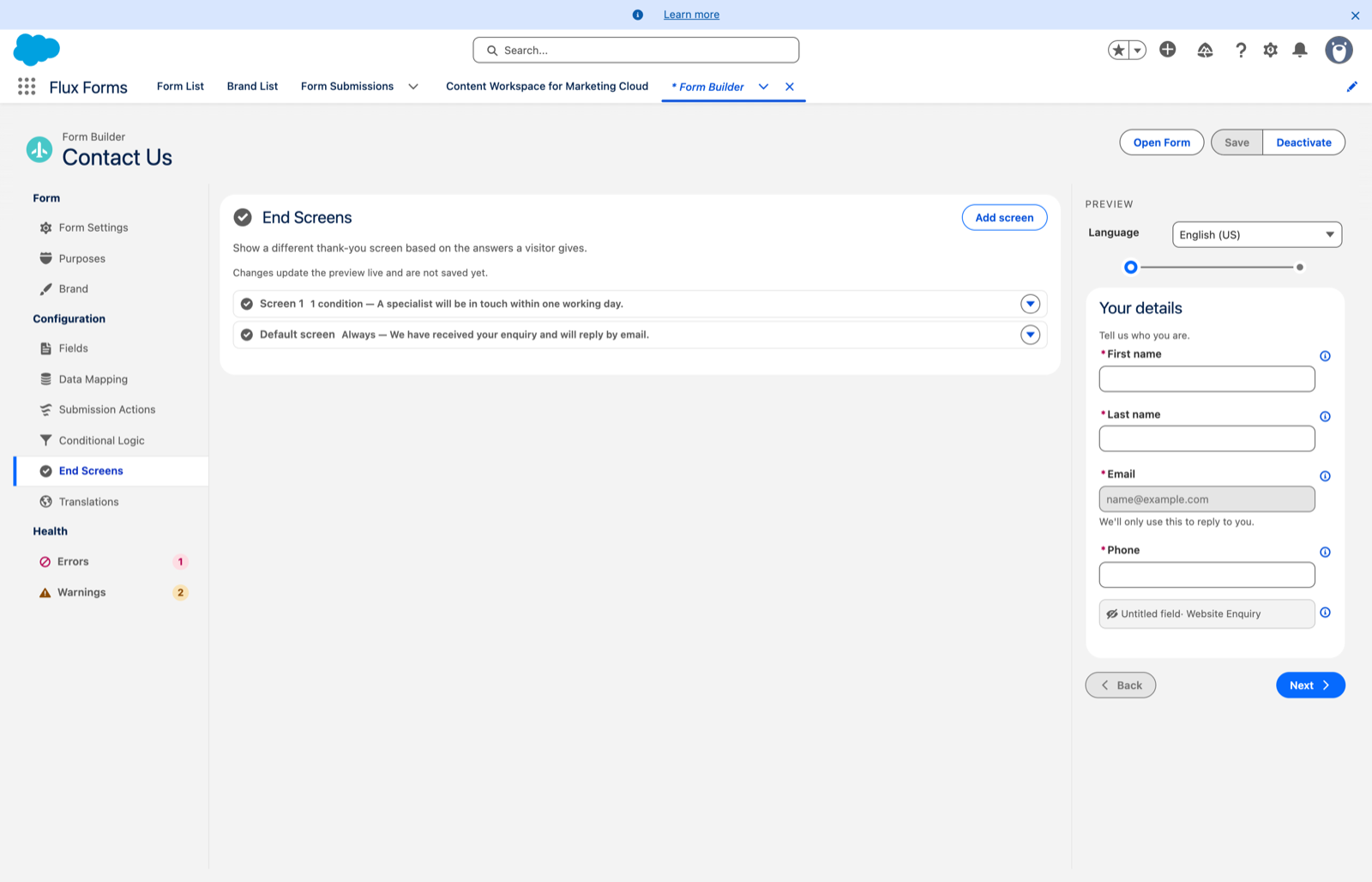
The scope always lists a Default screen at the bottom — the thank-you shown when no other screen's conditions match. Above it sit the conditional screens you add, checked top to bottom: the first one whose conditions match wins.
Adding a screen
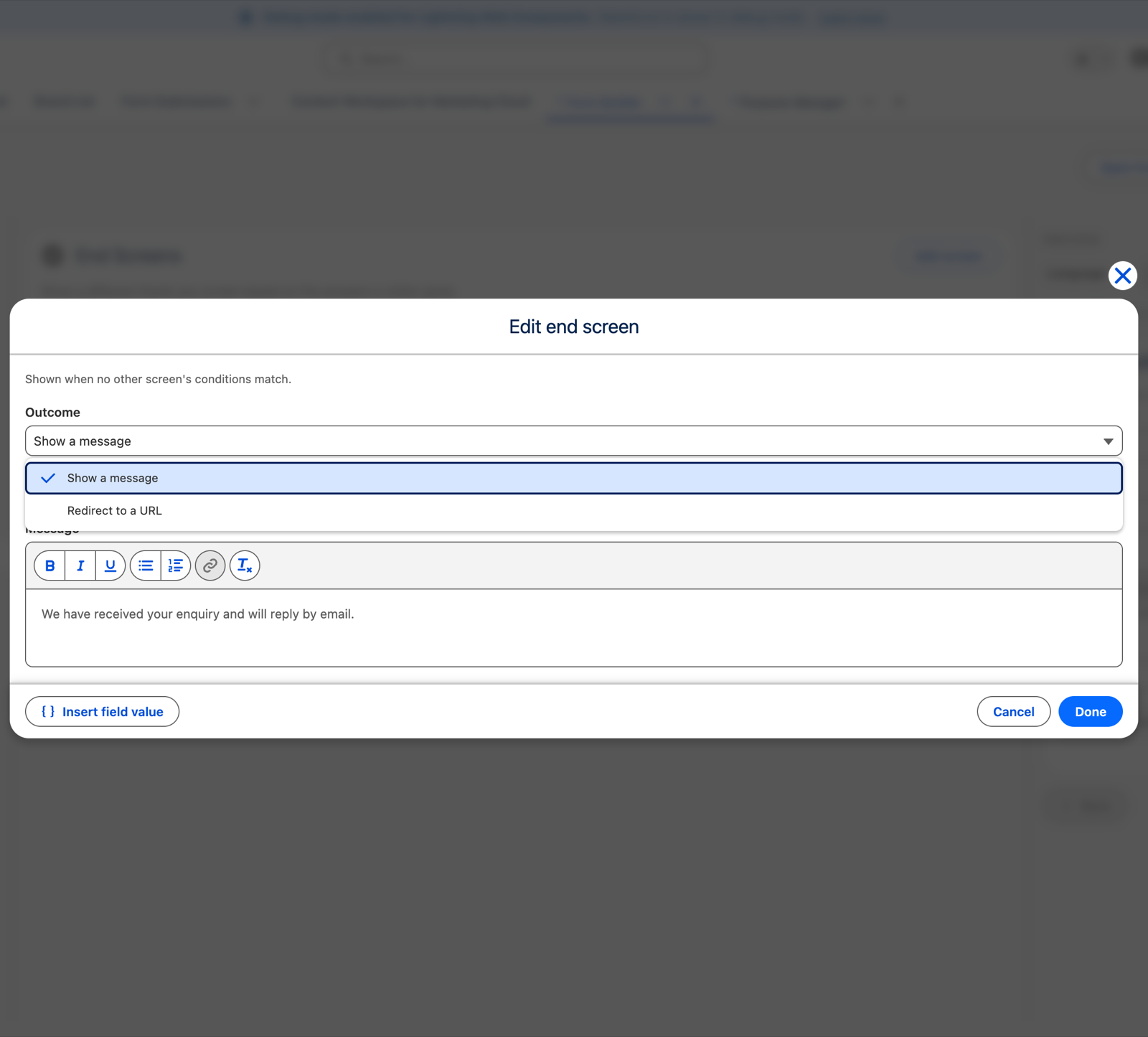
Click Add screen. In the dialog:
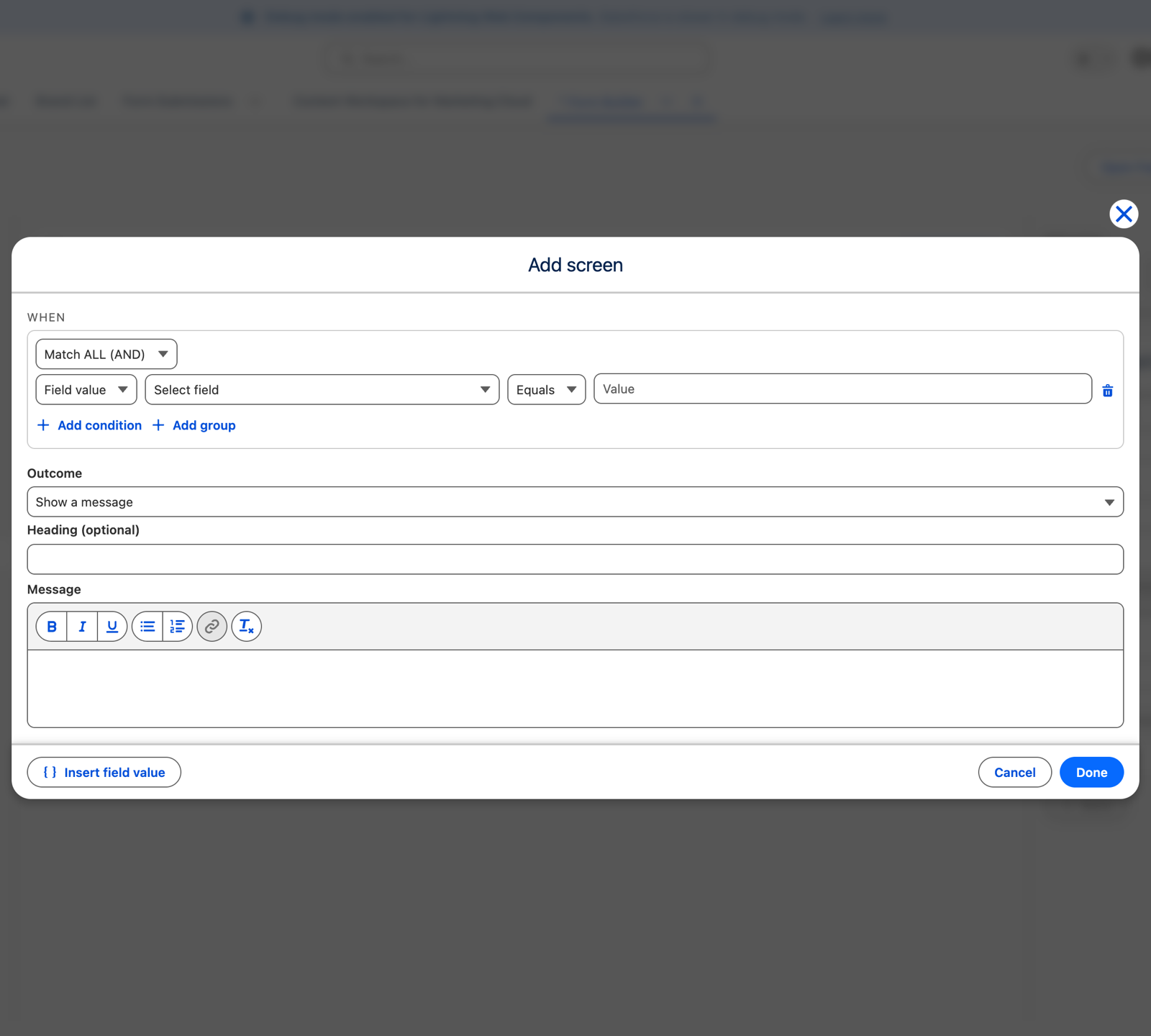
- Under When, build the conditions — the same Match ALL / ANY builder, groups, and Equals / Does not equal operators as Conditional logic.
- Choose the Outcome:
Show a message — type the Heading (optional) and the Message. The message is a rich-text editor (bold, italic, lists, links; no images), so you can thank the visitor and link them onward. These are the default-language words; translate them in the Translations scope.
Redirect to a URL — send the visitor to another page after they submit, such as a partner site or a
download. Enter an absolute https:// address; anything else is rejected. The address is fixed for
everyone who reaches that screen — it cannot include a visitor's answers. The visitor briefly sees a
"Redirecting…" message before they leave.
Click Done. Add as many conditional screens as you need. Edit or delete one from its actions menu (▾) — the Default screen can be edited but not deleted, since it is the fallback.
The fallback
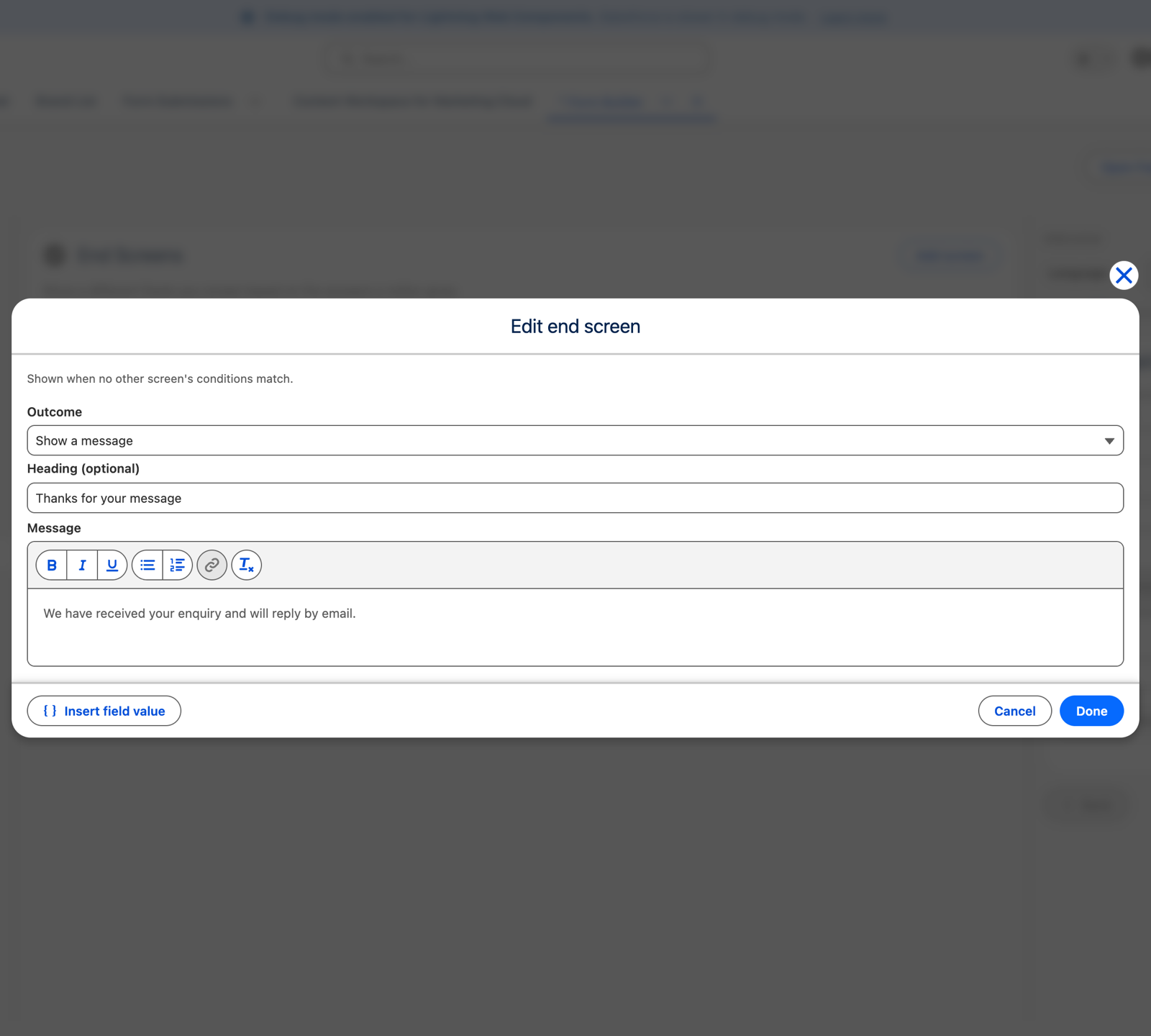
Open the Default screen to set the fallback wording, or make the default a redirect.
If you leave End Screens empty entirely, the form falls back to the single Submission thank-you from the Translations scope.
How the choice is made
The right thank-you — or redirect — is chosen in the visitor's browser the moment they submit, from the answers on screen. So it always matches what they actually entered.
Translating them
End screens appear in the Translations scope after the sections. Click a screen row to translate its Heading and Message for each language. See Translate a form.
Related
Block (go to end screen) in conditional logic sends a visitor to an end screen without submitting. See Flow actions.