

Open the live form
Build and copy the public link, optionally pinned to a brand or a language.
Beside the publish control, the header has an Open Form button that jumps straight to the form's public location.
It is enabled only once the form is Active — a draft has no public page — so it doubles as a quick "is this live?" check.
The dialog
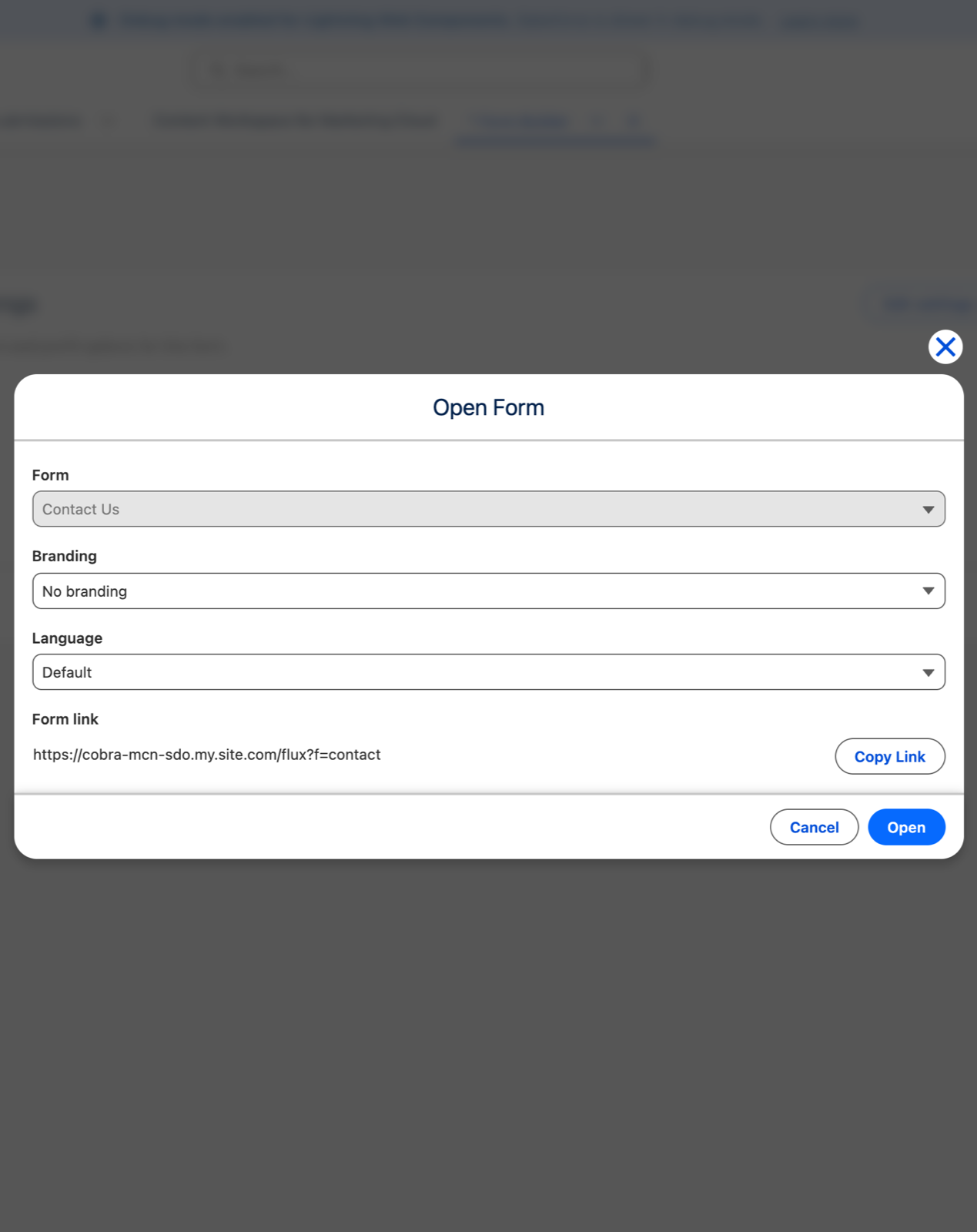
- Form — fixed to the form you are editing.
- Branding — leave it on No branding to open the form with its own assigned theme, or pick any
theme to preview the form with that one instead. Your choice is added to the link as a
bparameter. - Language — leave it on Default to open in the form's default language, or pick one of the
form's languages. Your choice is added as a
langparameter. The form still lets a visitor switch language in-page. - Form link — the resulting public URL, shown read-only:
…/forms?f=<form key>, plus&b=and&lang=when you chose a brand or language.
Copy Link copies it to your clipboard, ready to paste into an email or campaign. Open launches the live form in a new tab.
The same dialog, from the Brand Builder
This is the same dialog the Brand Builder's Open Form button uses. The difference is which half is fixed:
- From the Form Builder — the form is fixed, you pick the brand.
- From the Brand Builder — the brand is fixed, you pick the form.
If it is disabled
Two causes:
- The form is not Active. Activate it first.
- The public site address is not configured. The dialog says so, and Copy Link and Open stay disabled until an administrator sets the Site Base URL in CMS Media Settings. See CMS Media Settings and Publish the public forms site.
For a personalised, prefilled link, this dialog is not the tool — use the Build Flux Forms Prefill Link action. See Prefill links.