

Submission actions
What happens on submit: create or update records, invoke a flow, run Apex, publish an event.
The Submission Actions scope configures what happens when someone submits the form. Actions are organised into steps, and each step runs as one transaction segment, in order.
Steps
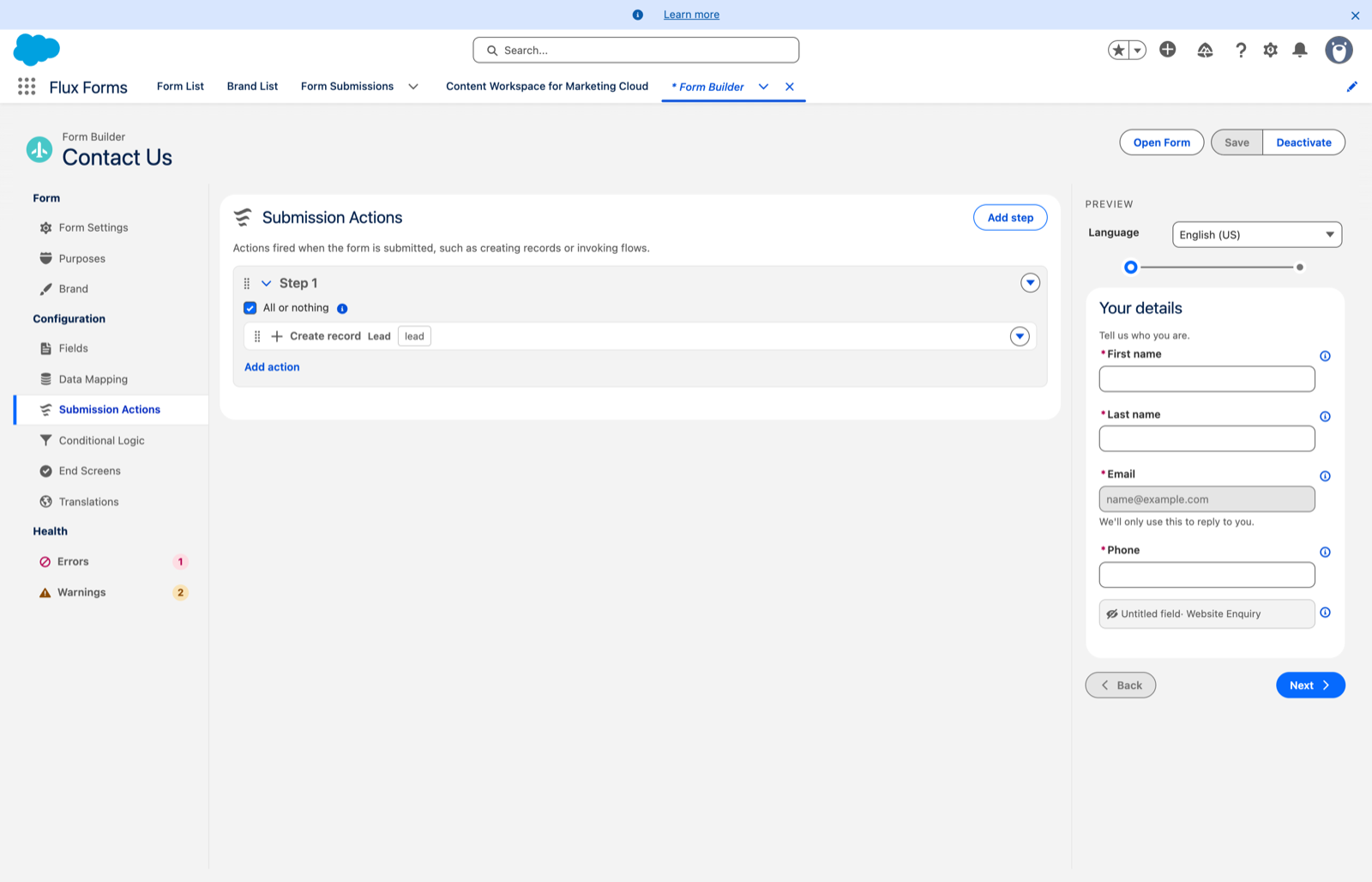
Add step creates one. A step has an All or nothing toggle — leave it on to roll back every action in that step if one of them fails.
Use separate steps to sequence work: create a record in one step, then invoke a flow that uses that record's Id in the next. Reorder steps by their grip or the actions menu.
Actions
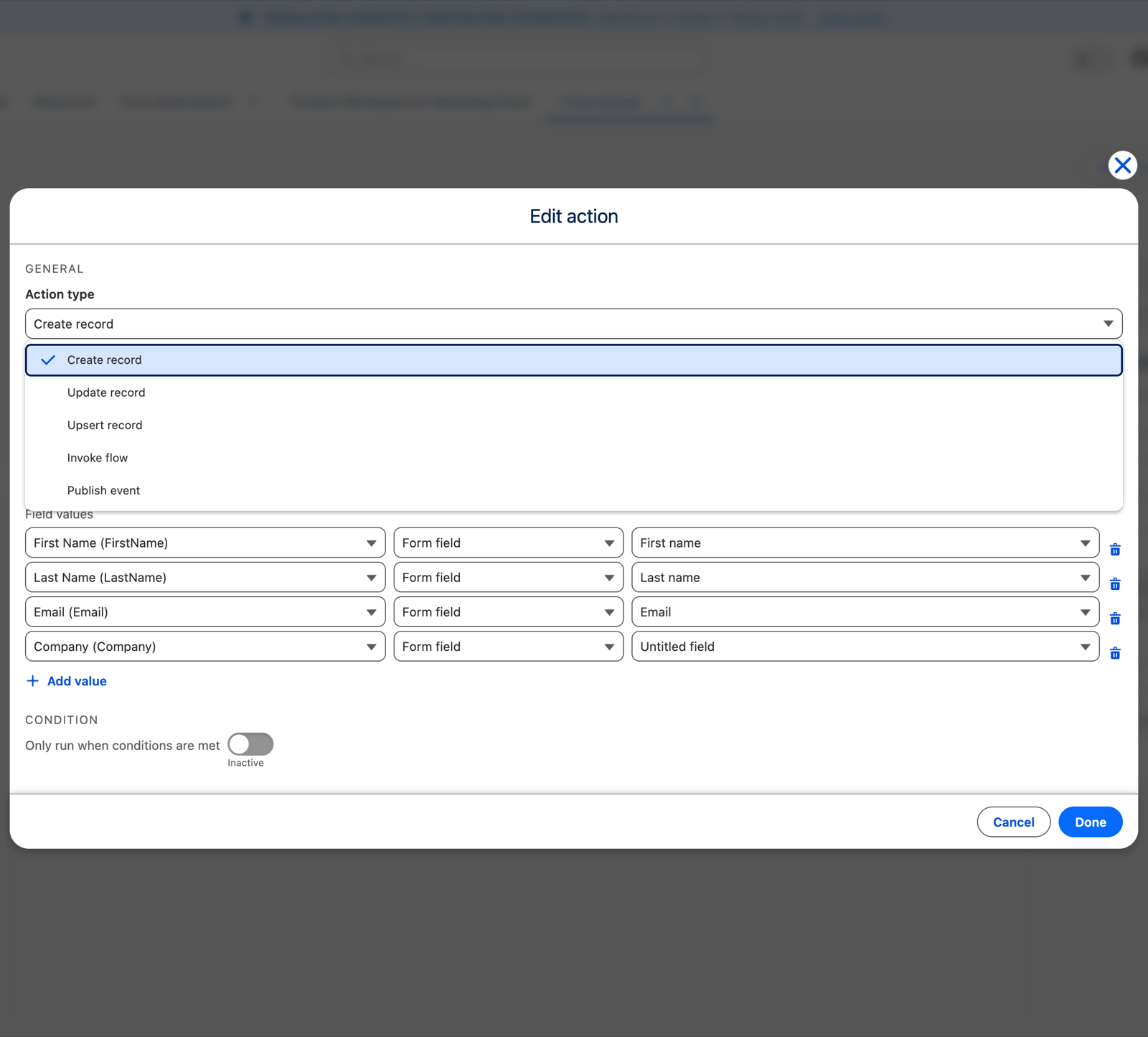
Inside a step, Add action opens the action editor; clicking any action row re-opens it. Choose the action type and the editor shows only the settings that type needs.
Create / Update / Upsert record
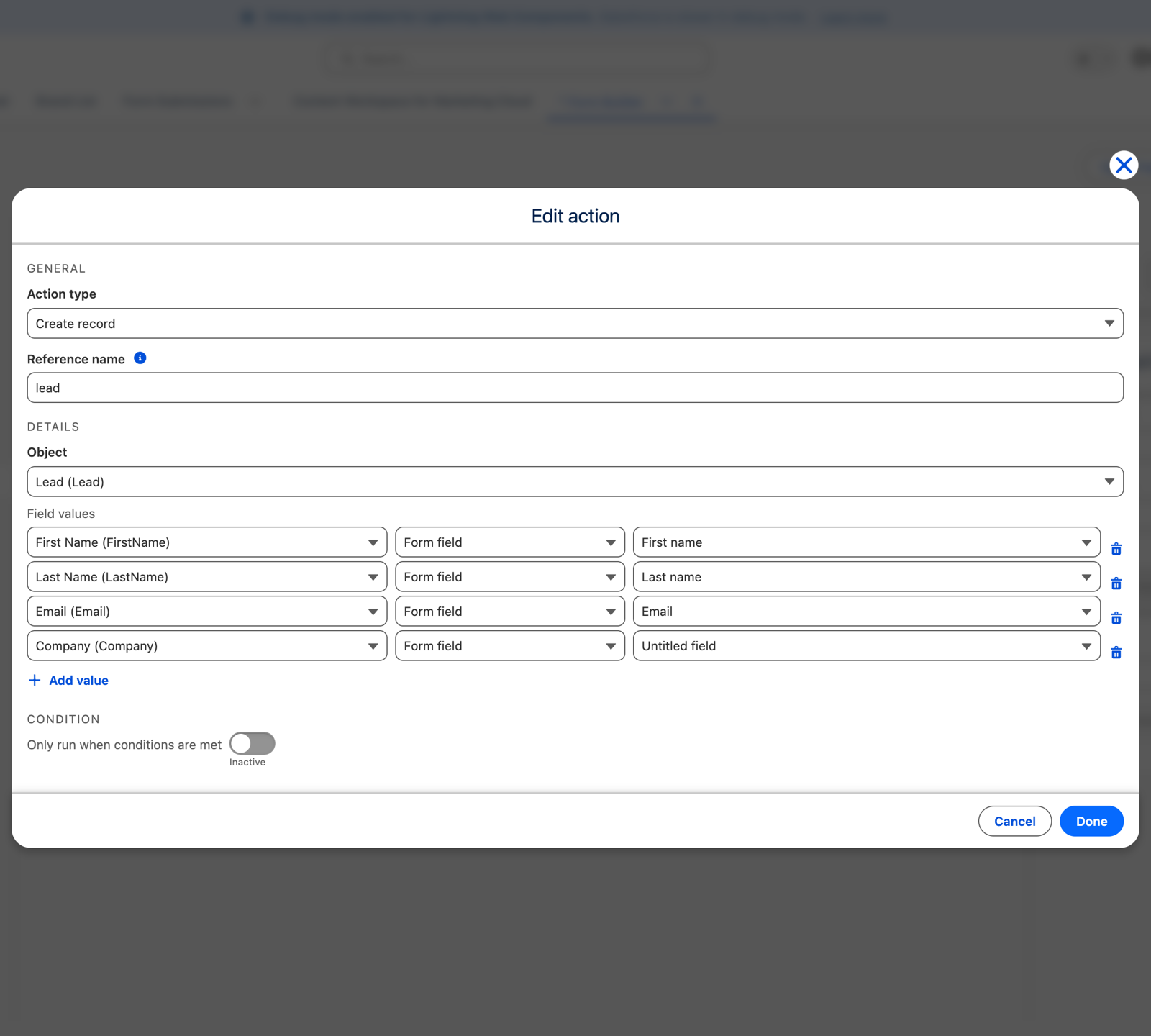
Pick the target Object and map its Field values. The Object and Field pickers list only what this form is allowed to write, from its purpose whitelist.
Update and Upsert also let you set the record to update, and Upsert an External ID field.
A question with more than one answer needs a multi-select target. A checkbox group hands over every option the visitor ticked. Map it onto a multi-select picklist field and the selections are stored together, and they come back selected if the record ever prefills the form again. Map it onto a field that holds a single value — a text field, an ordinary picklist — and it only works while the visitor ticks at most one box; two or more fail the action with a message naming the field. Either point the mapping at a multi-select picklist, or limit the question to one answer.
Write mode: overwrite or add to existing
A field row that targets a multi-select picklist gets one extra control, Write mode, because a set of values can sensibly be added to instead of replaced.
- Overwrite — the default, and how every mapping made before this behaves. The answer replaces whatever the record holds. Tick nothing and the field is emptied.
- Add to existing — the answer is merged into what the record already holds. Stored options stay, newly ticked ones are added, and re-ticking one that is already stored changes nothing. Tick nothing and the field is left exactly as it was; nothing is removed.
Reach for Add to existing when several forms — or repeat submissions by the same person — each contribute part of a bigger set: interests, skills, shift preferences. Reach for Overwrite when the form asks the visitor to confirm the complete, current set.
Two things to know. Add to existing can only add, never remove, so if a visitor must be able to un-tick something, use Overwrite. And on a Create record action the control has no effect — a brand-new record holds nothing to add to.
If the form is not saved yet or has no purpose assigned, you can type API names directly — but Save will refuse a form that writes a field its purposes do not grant edit access to. Assign the right purpose first.
Invoke flow
Pick the flow from a dropdown of the flows this form is allowed to run, from its purpose whitelist. Once a flow is chosen, its inputs and outputs pickers list that flow's own variables, so you map by name rather than typing.
If no flow is whitelisted for the form — it is not saved, has no purpose, or the purpose grants no flows — the flow field and its inputs and outputs are hidden, with a note asking you to whitelist a flow first. Save also refuses a form that invokes a flow its purposes do not grant.
On-demand flows work here too, and there is nothing extra to configure — Flux Forms detects them and runs them through an Apex class your administrator registered. If that registration is missing the action fails at submit with a message naming the Setup screen; your administrator sees the gap flagged in Purpose Manager. Flows from installed packages appear with their package prefix and work as-is.
Run Apex
Pick an Apex handler from the classes your administrator approved for this form. Its inputs and outputs then appear as typed rows built from the contract the class declares, mapped exactly the way a flow's variables are.
There is no free-text box: if the form's purposes approve no handlers, the action says so and points at Purpose Manager. Save also refuses a form naming a class its purposes do not approve. See Run Apex actions.
Publish event
Enter the platform event API name and map its fields.
Where values come from
Each field or input value is one of:
- Constant — a value you type
- Form field — the visitor's answer
- Earlier action result — for example the Id of a record an earlier action created. Pick the action's reference name and the result key.
- Submission field — a value from the submission record itself
Give an action a Reference name if a later action needs its result.
Conditional actions
Only run when… adds a condition — the same When-builder as Conditional Logic — so the action only runs when the submitted answers match.
An action whose condition does not match is logged as Skipped, not as a failure. See
Submissions.
Note that Submit Actions conditions test field answers only — unlike Conditional Logic, they cannot read the language, branding, or URL parameters.
Reordering
Reorder or duplicate actions from their actions menu (▾). Changes are kept when you Save.